
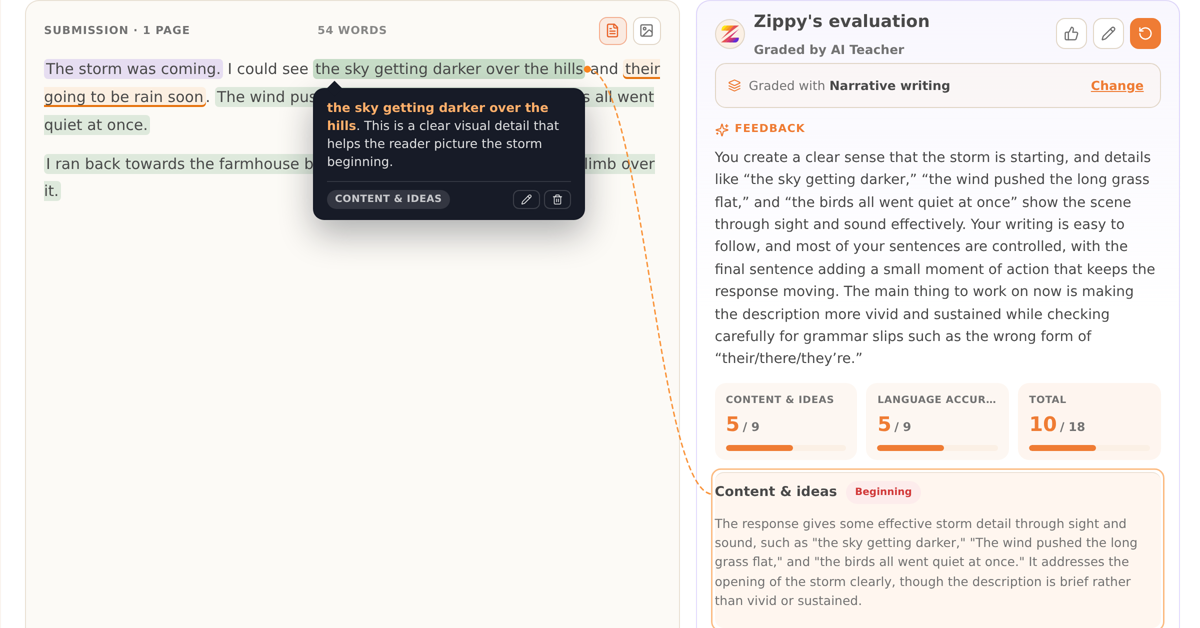
What's new in August: editing, re-grading, and skills

Some questions and feedback we have had recently:
If I reword a comment, does the score change? Can I delete a comment I disagree with? Does Zippy re-grade by itself? What does a student or a parent actually end up seeing?
The August update answers all four.
1. Every annotation is yours to edit or delete
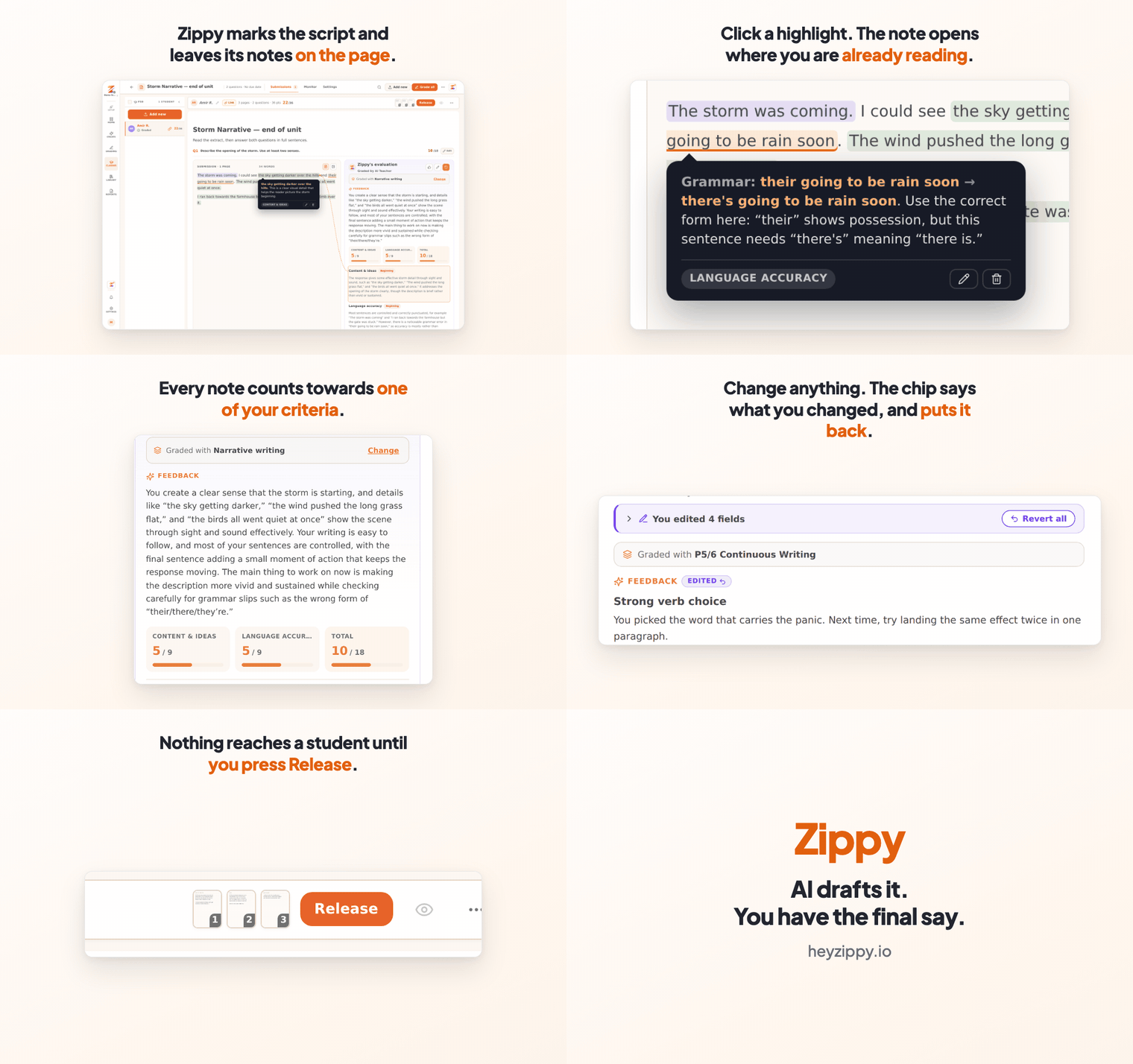
Click any highlight on the script and Zippy shows you the annotation behind it: what it thinks is wrong, the rewrite it suggests, and which criterion it counts towards. Reword it, change the suggestion, or delete it. The edit and delete buttons sit on the annotation itself, where you are already reading.
Editing or deleting an annotation does not move the score by itself. The score changes when you change it, or when you ask Zippy to grade the piece again. Nothing reaches a student until you press Release.
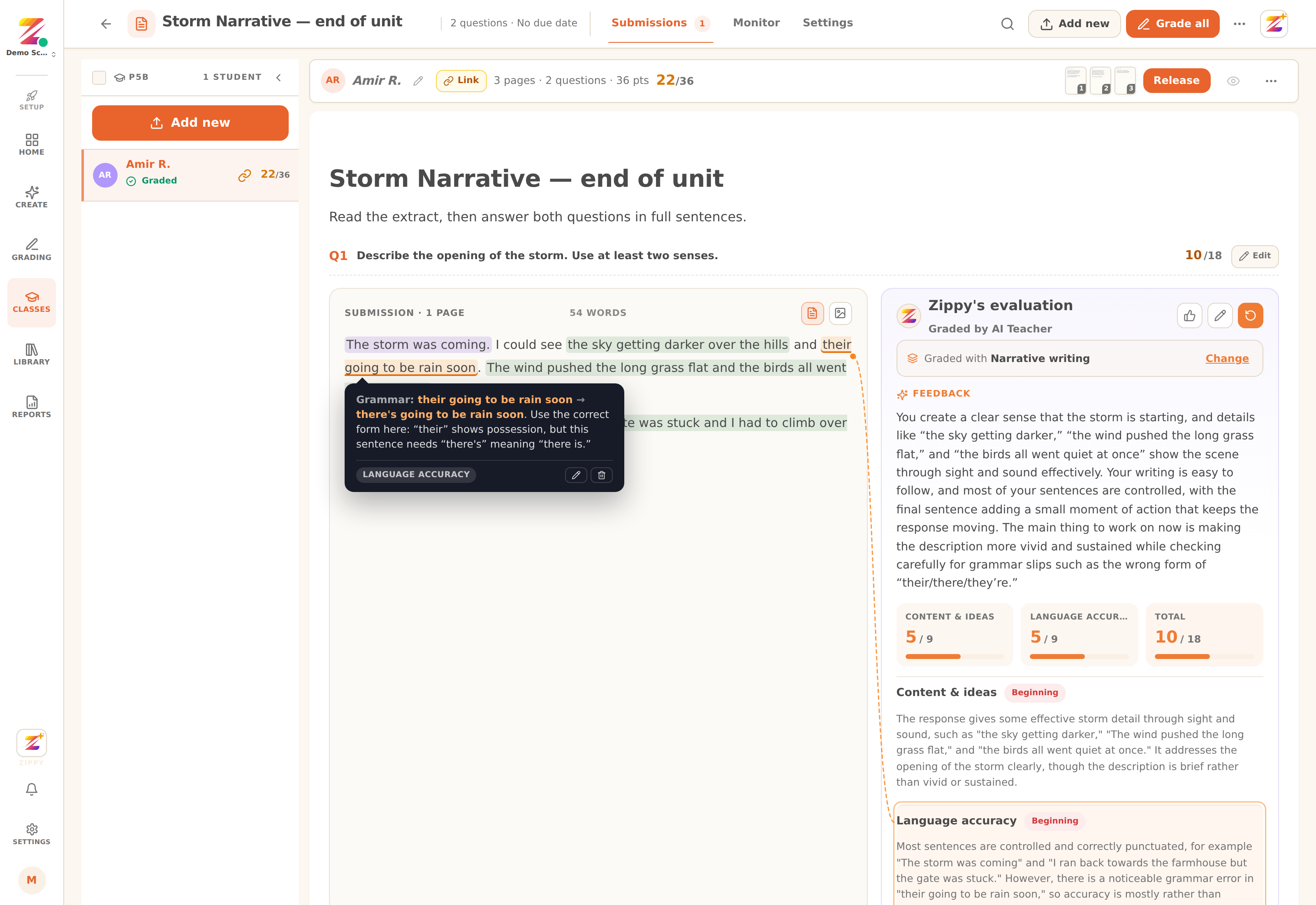
A graded response. The highlighted phrase carries a grammar note tagged LANGUAGE ACCURACY, and the dashed orange line shows which criterion it counts towards. Edit and delete are on the note itself. Scores per criterion sit on the right, each with its own Edit.
2. Zippy never re-grades on its own
Re-grade is the circular arrow at the top of Zippy's evaluation. Press it and Zippy reads the piece again, taking in everything you have changed since it last graded. Your corrections feed into the new marking instead of being wiped by it.
It costs half a credit, and it only runs when you press it.
Where Zippy still disagrees with something you changed, it notes the disagreement beside your value rather than replacing it. Your number stays on the page. Re-grade a class of thirty and you get thirty notes to look at whenever you like, and no pop-ups to dismiss.
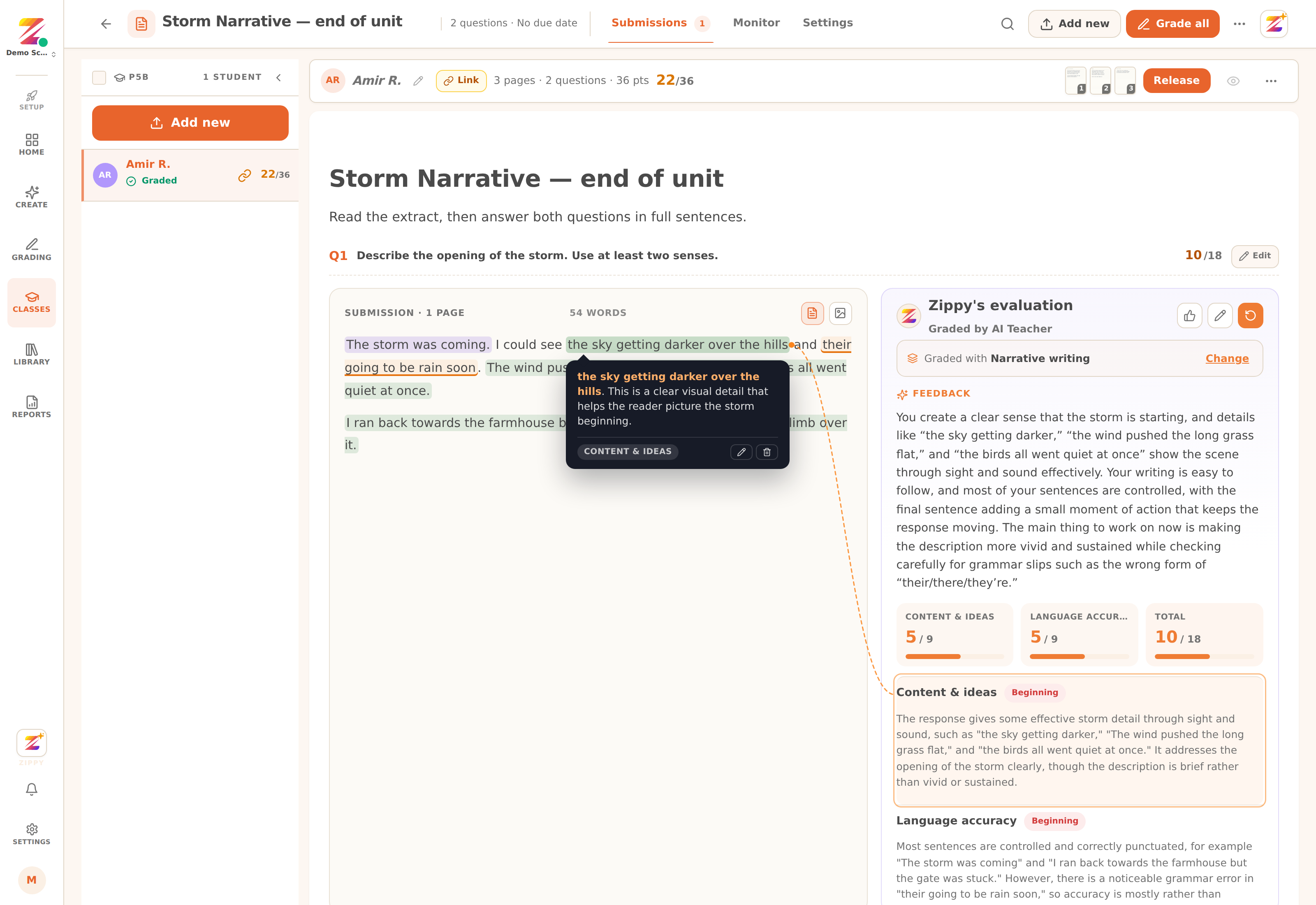
The same submission at full width. Praise and Next steps each have a Listen button, which younger students use far more than we expected. The re-grade control is the circular arrow, top right.
3. Every edit is labelled, and one click undoes it
Anything you change picks up a small EDITED label. Click the label to put back what Zippy originally wrote. A strip along the top counts them up and offers Revert all.
This is a proper undo rather than you retyping the original. Zippy saves its own wording the moment you change something, so undoing puts back exactly that, clears the label, and the field stops saying it was edited. Undo a mark and the totals follow.
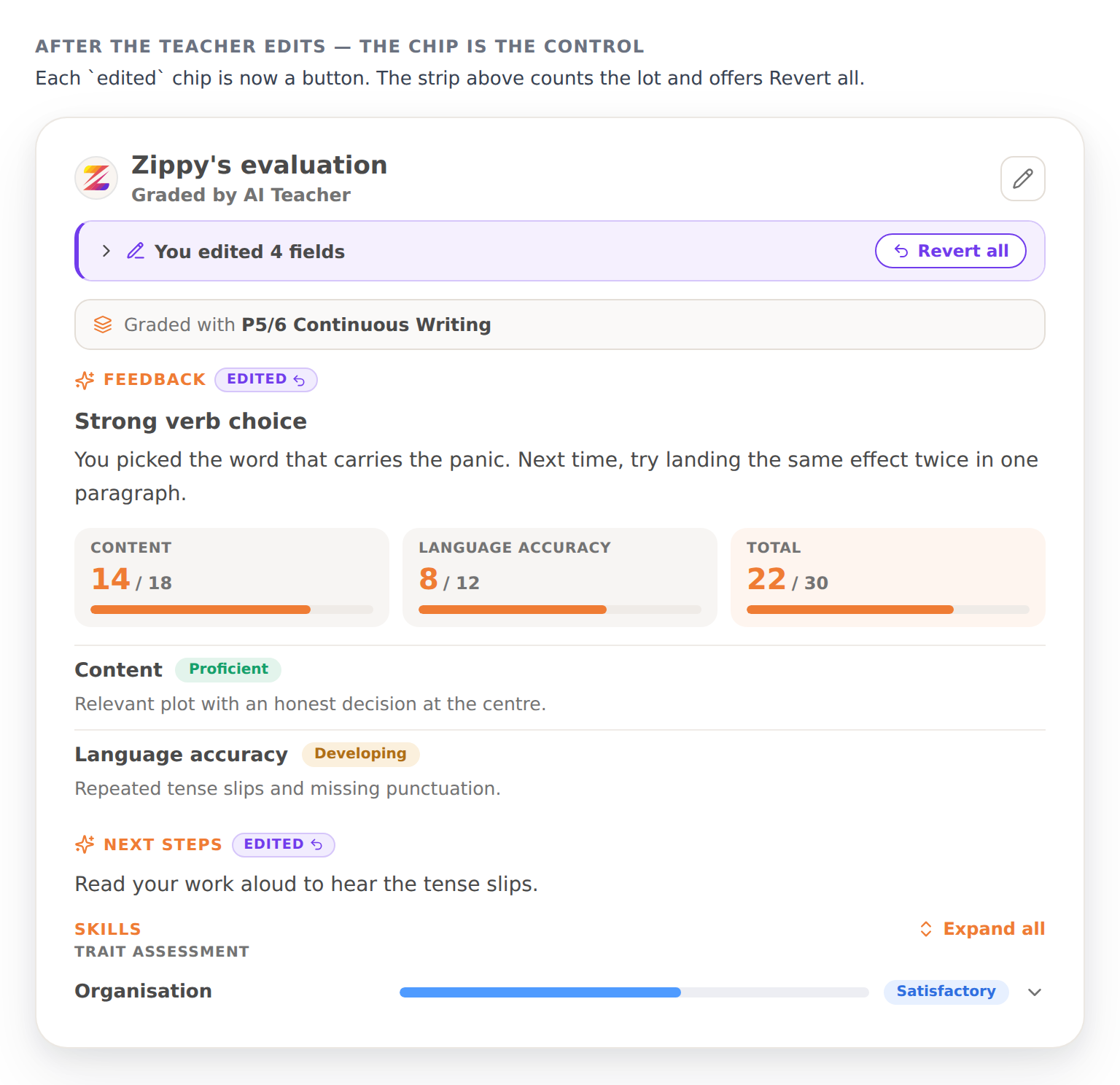
After editing: You edited 4 fields with Revert all, EDITED labels on Feedback and Next steps, and the per-criterion scores underneath.
4. Which skills each piece shows
Under the scores, every piece now carries a line for each skill, with a band and a bar, so you can see where the writing sits on Organisation, or Content, or Language accuracy without reading it again. Open a line to see the evidence Zippy used.
Across a whole class this is the part that changes what you teach next. Thirty children scoring well on content and sitting at Developing on organisation is one lesson to plan, rather than thirty conversations to have.
Also new
A grading report that goes home. Every graded piece exports as a two-page report: student, date, title and question, then scores by category, feedback and next steps on page one, with the annotated script on page two. This is the thing that goes in the file or gets attached to a message home, under your name.
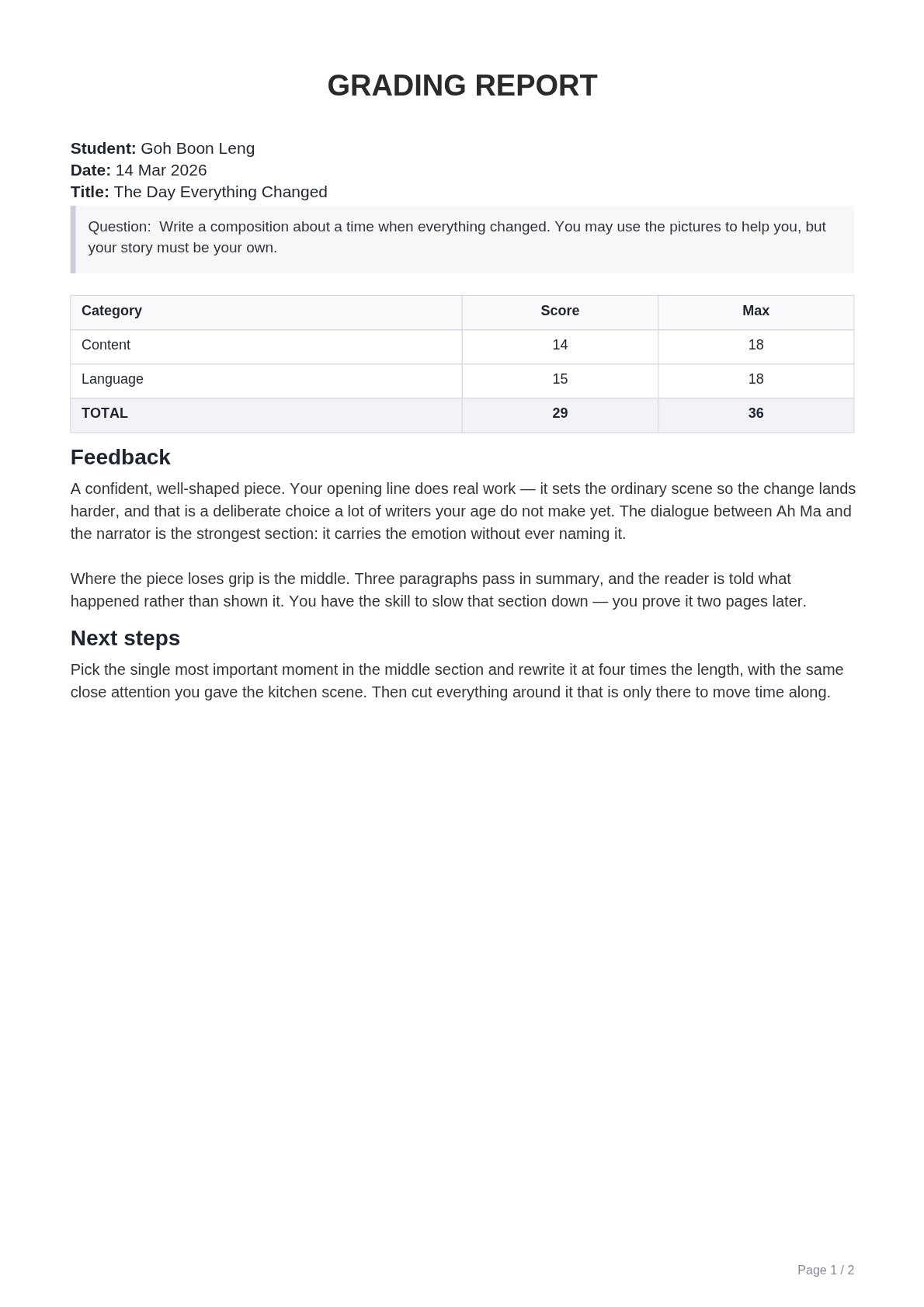
Page one of the exported report. Page two carries the annotated script.
Worksheets you can print, and grade from a photo of the finished page. Lessons and worksheets built in Zippy come out as proper multi-page documents with mixed question types. Print one for a Saturday class, and when the children hand the pages back, photograph them and Zippy grades the handwriting from the photo.
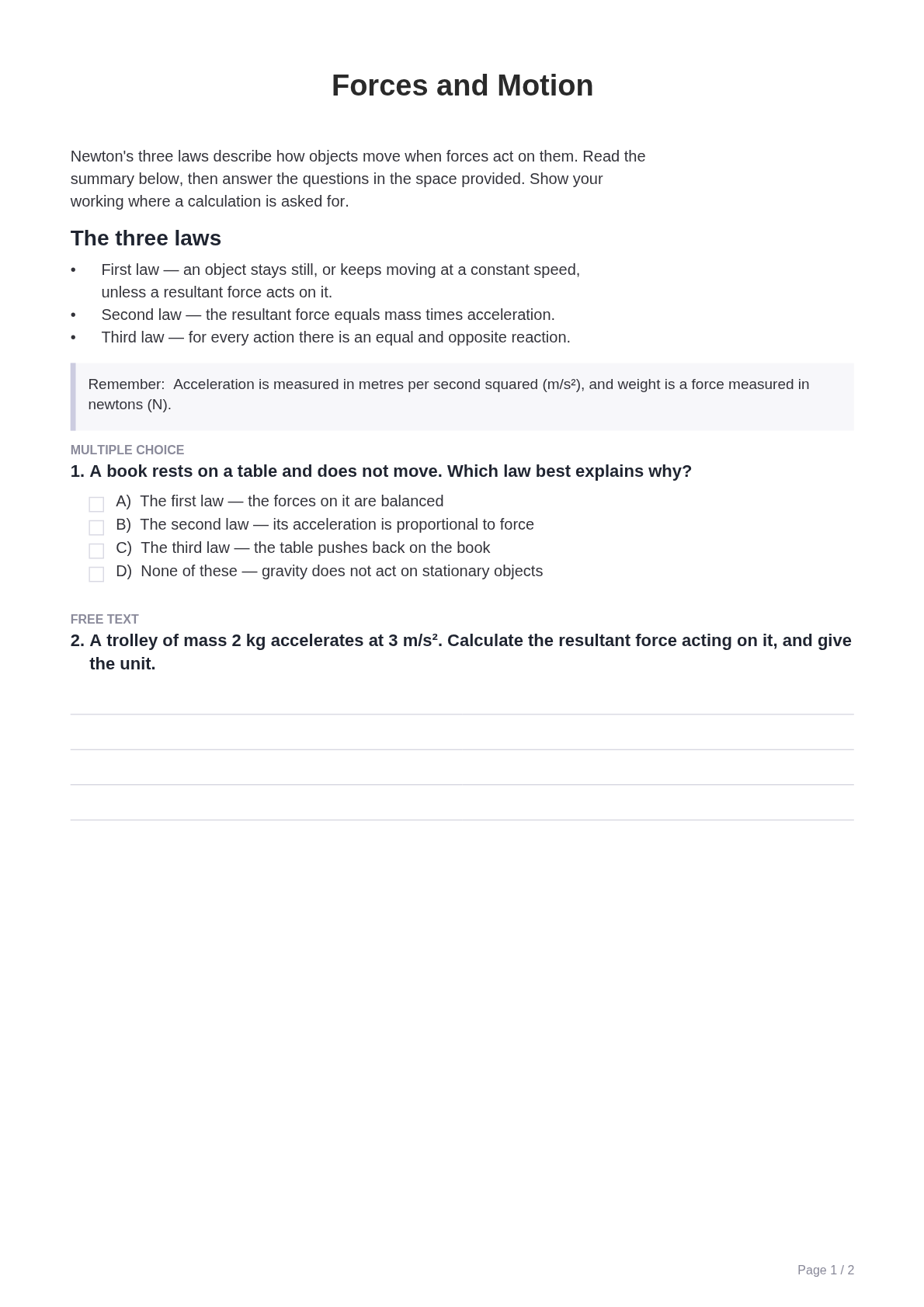
A generated worksheet, page one of two. The subject here is Science, but the format is the same whatever you put into it.
The thread running through all four
Zippy does the first pass. Every word of it stays yours to reword, delete or undo, and nothing reaches a student until you press Release. That is the same principle whether you are changing one annotation or re-grading a class of thirty.
All four are in your workspace now. Open any graded piece and the annotations, the re-grade arrow and the EDITED labels are already there.
If you want the reasoning behind the design, how to mark with AI and still be the one who marked it is the longer argument, and AI grading is only as good as the rubric behind it covers the rubric setup underneath it. Or try it on a class set, free for teachers.