
Tips and shortcuts
Everything here saves time in a normal marking week. Some are quicker ways to get student work in, some are for undoing or re-running something without losing what you changed, and a few are settings worth getting right once and then forgetting about.
This page assumes you have marked at least one set. If you have not, start with Bulk grading a class set and come back.
Getting work in
Build a class from a photo of the register
You do not need to type names or prepare a spreadsheet. Photograph the class list and Zippy reads the names off it. A CSV works too, and the first row is treated as a header if it has Name or Email columns. See Getting started.
Upload one PDF for the whole class
A single scan of thirty scripts does not need splitting first. Upload it as it is and Zippy separates it into pages, which then sort to students exactly as thirty separate files would.
Photograph handwriting instead of scanning it
A phone camera on a page of P5 handwriting is enough. Zippy transcribes the writing and marks the transcription, so handwritten work grades the same way typed work does. No scanner, and nothing to type up.
Let Zippy match the files to students
Dragging thirty cards onto thirty names is the slow way. Zippy will attempt the matching itself, leaving you to correct the few it gets wrong.
While you are marking
The EDITED label is a button
Every field you change picks one up. Click it and Zippy's original wording comes back exactly as it was written, because it was stored the moment you changed it. There is a Revert all for the whole piece.
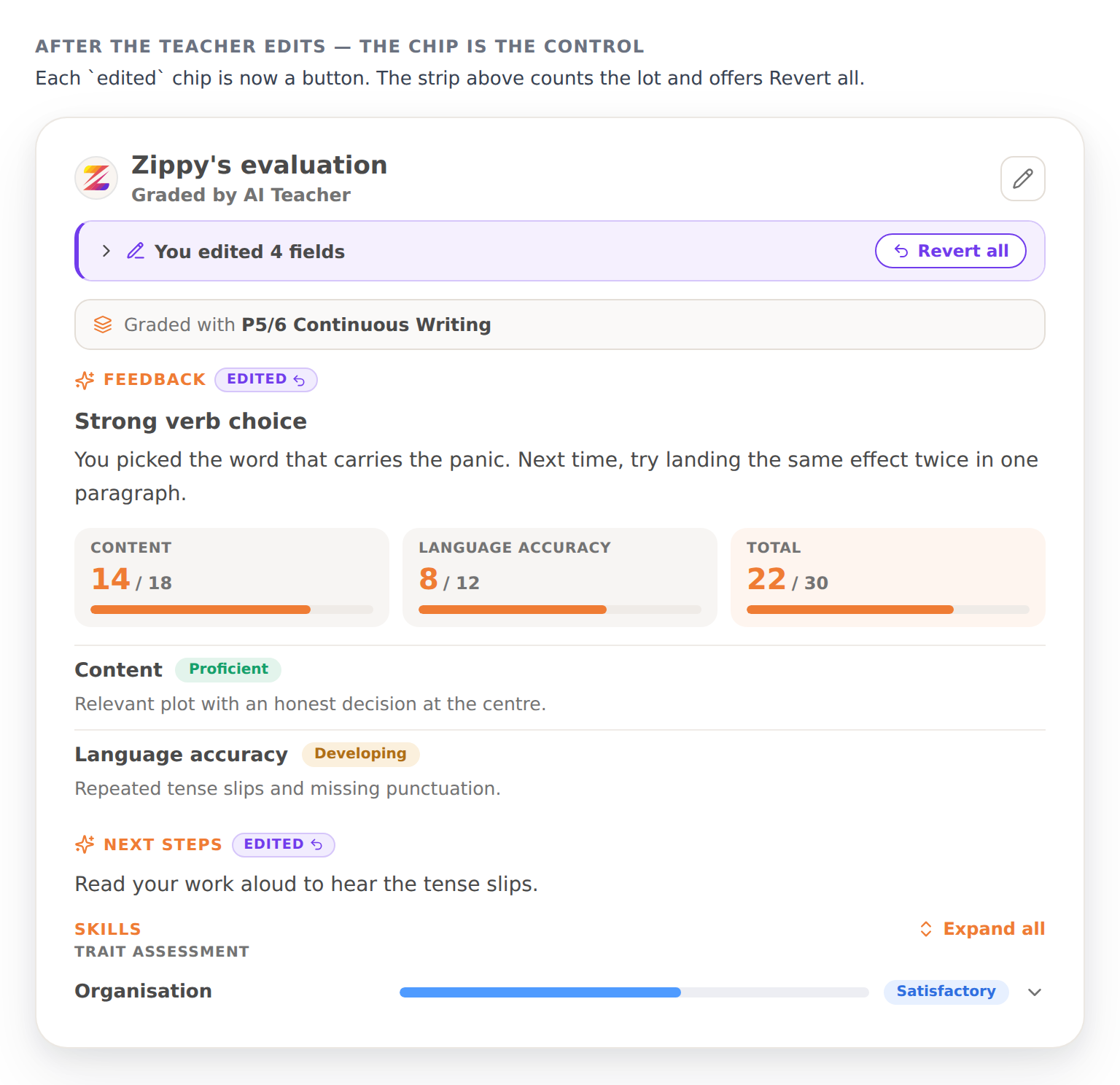
You edited 4 fields with Revert all above, and an EDITED label on each changed field. Click a label to put back what Zippy wrote.
Re-grade keeps what you decided
It costs half a credit and it only runs when you press it. Your corrections feed into the new marking rather than being wiped by it, and where Zippy still disagrees, it records that beside your value instead of overwriting it.
Spot-check rather than re-reading everything
Teachers who read all thirty scripts in full save very little time. The bands worth your attention are the ones you distrust: the borderline scripts, and the children whose marks surprise you.
Read the class average row first
A dip down one column is usually the task rather than the class. More on this in Gradebook.
Worth setting up once
Tag every rubric by subject, level and category
Zippy offers the right rubric for the right piece based on those tags, so five minutes of tagging removes a decision you would otherwise make on every activity. See Configuring rubrics.
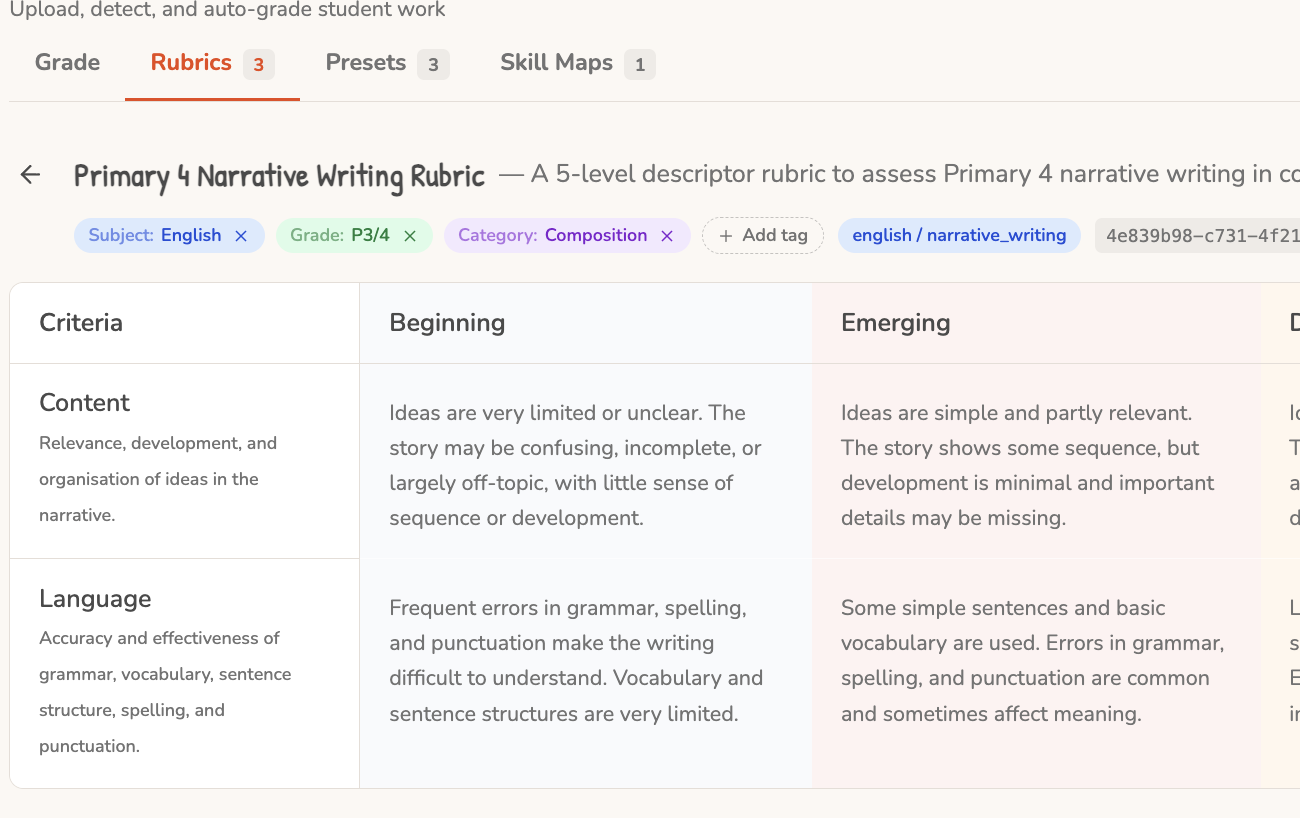 The tags are the line under the rubric name: subject, level and category. They are what decides which rubric is offered for which piece.
Use the Prompt box for what a grid cannot hold
Grading presets have a free-text Prompt field, and whatever you put in it is handed to the grader word for word. It is the right home for a house convention, a quirk of your mark scheme, or the mistake your P5s make every year.
Decide who sees spelling corrections
It is a toggle on the preset. Some classes need them and some drown in them.
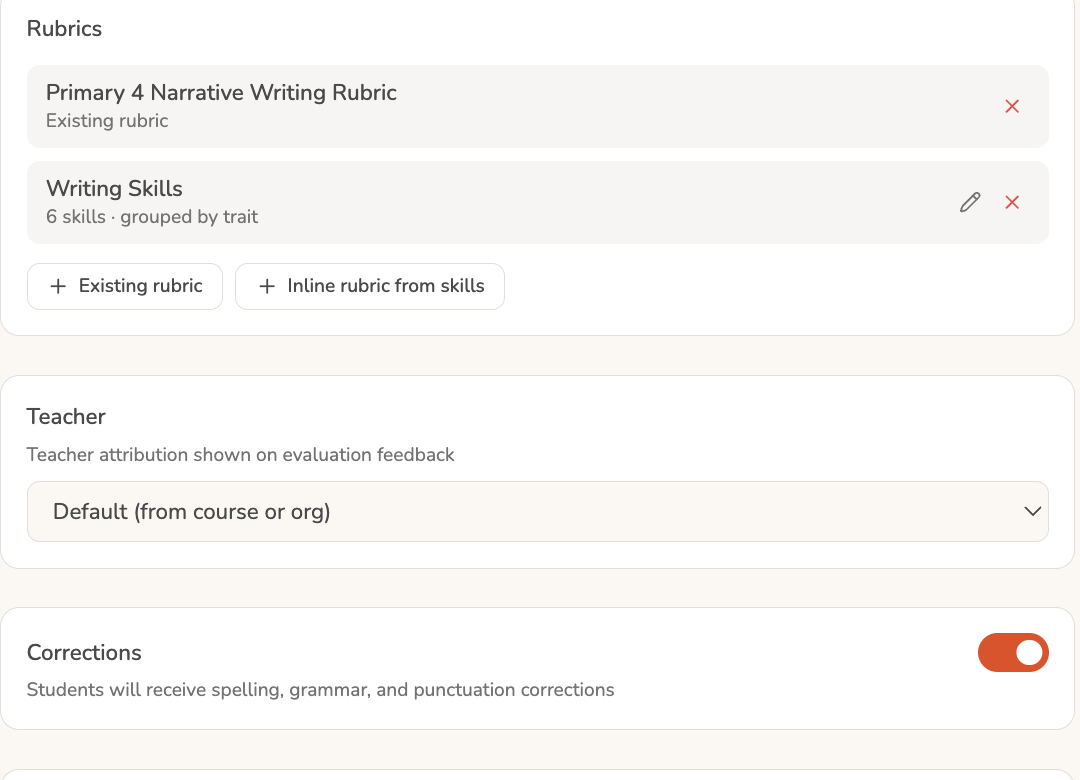 The preset also carries the free-text Prompt box and decides whose name the feedback goes out under.
Getting it back out
Print anything you build
Lessons, worksheets and other resources come out as proper multi-page documents, so multiple choice stays multiple choice and free-text questions print with answer lines. Print for class, then photograph the finished pages and grade them from the photo. See Generating a lesson.
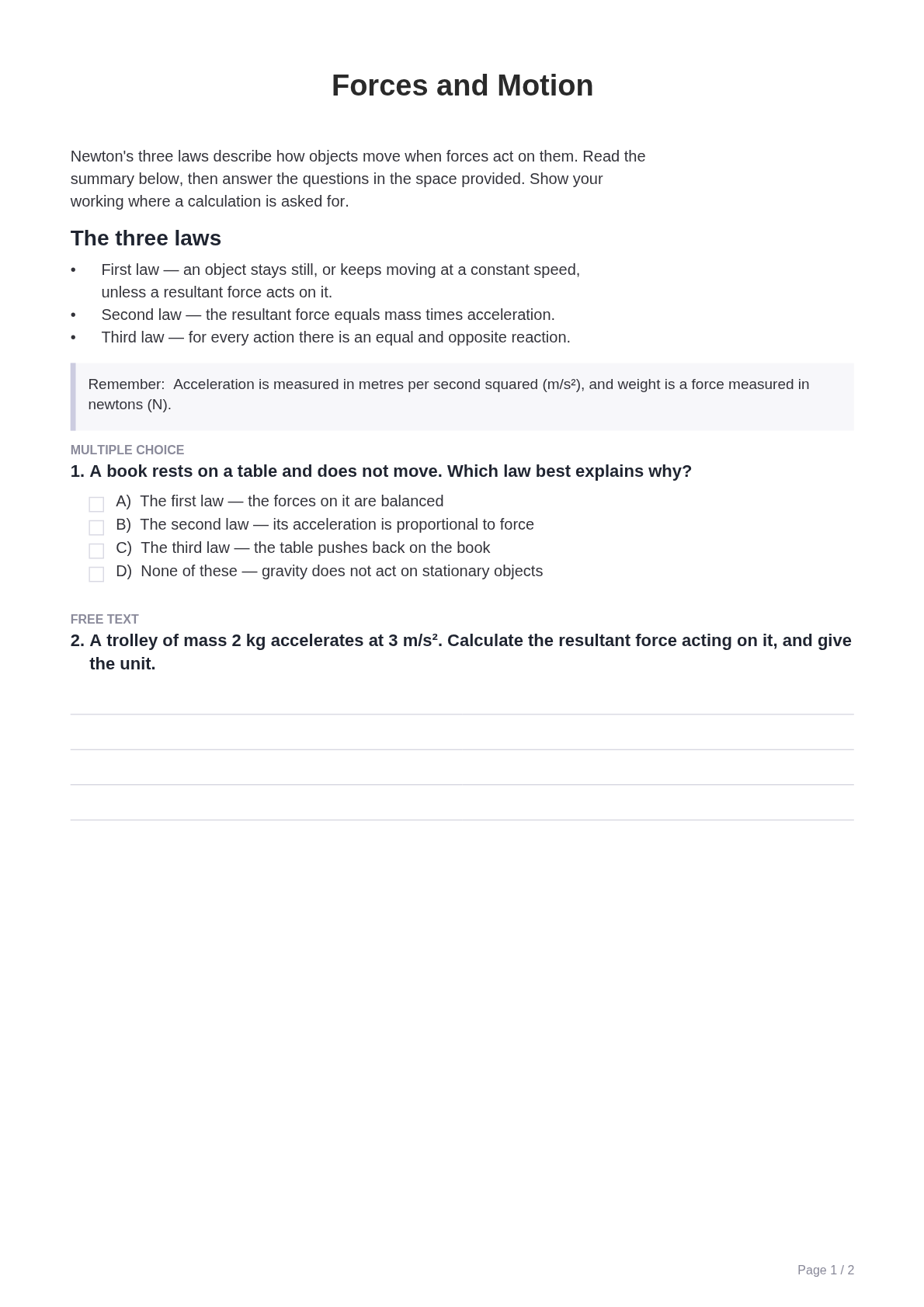 A generated worksheet as it prints. Free-text questions come out with answer lines under them.
Use QR codes instead of student passwords
Generate one code per student, print the sheet, and they scan it to log in. Codes are single use and expire, so a printed sheet does not become a permanent key to a child's account. See What students see.
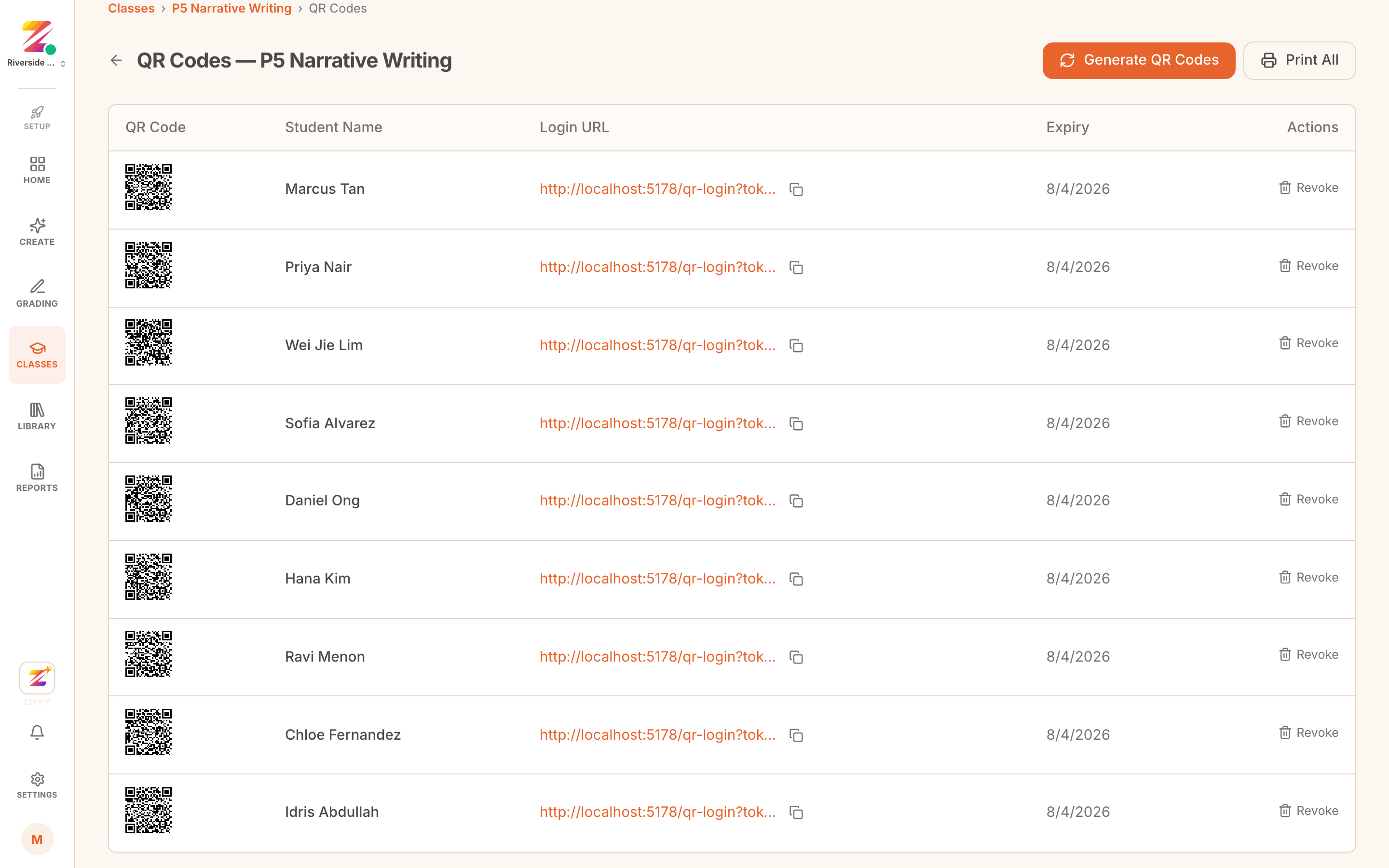 One code per student on a printable sheet. They scan instead of typing a password.
Feedback can be read aloud
Praise and Next steps can both be read aloud, which younger students use far more than we expected.